 Pocketify
POCKETIFY GUIDE / 01
Use Quick Dock on Mac
Keep Pocketify, favorite sites, and link import on your desktop.
Show, move, and hide
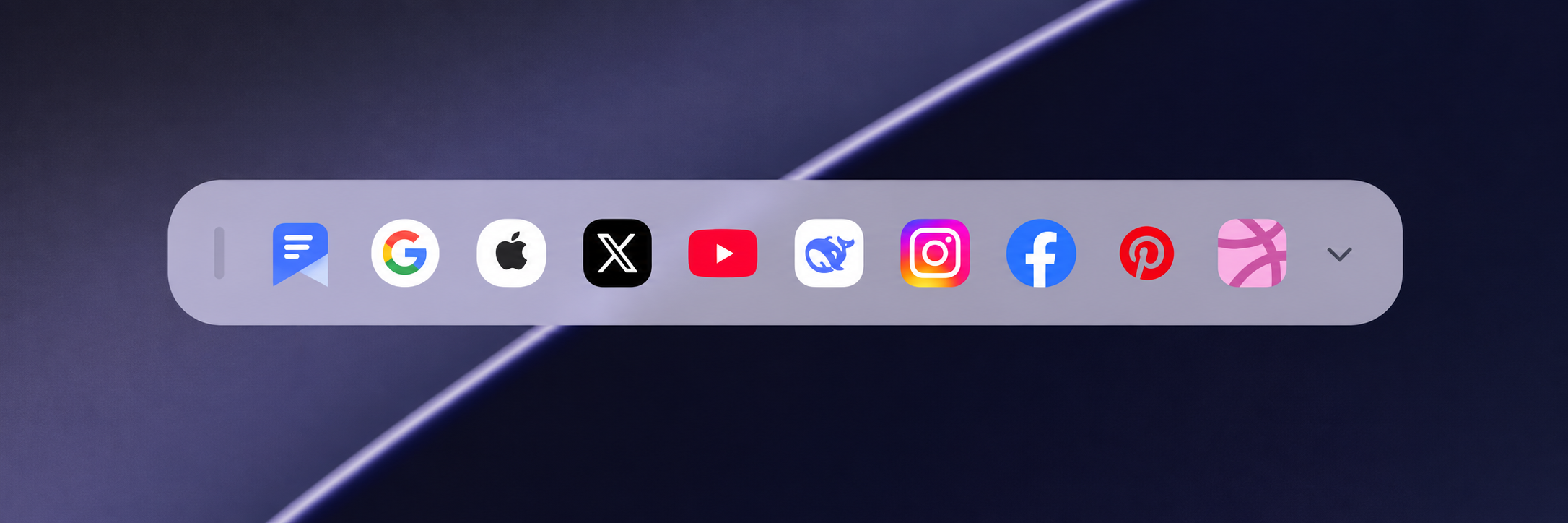
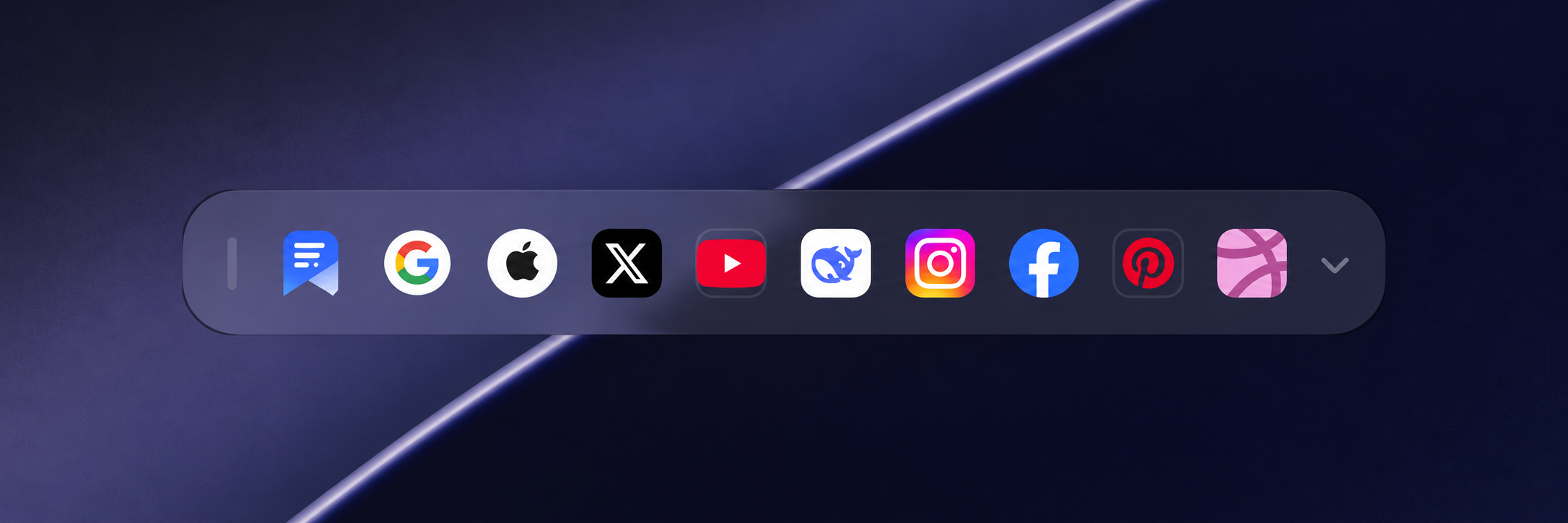
- Click the Pocketify icon in the macOS menu bar and choose Show Quick Dock.
- Drag the vertical handle at the far left to place Quick Dock where it suits you.
- When you don't need it, choose Hide Quick Dock in the menu bar.
Quickly open the app and sites
Click the Pocketify icon to return to the main window, or a site icon to open its website. Scroll horizontally if there are more sites.
Quick Dock prioritizes followed regular websites, excluding RSS feeds. If none are available, it shows default shortcuts that may vary by region.
Expand the import bar and paste a link
- Click the arrow on the right to expand the import bar.
- Enter an address or click Paste to fill it from the clipboard.
- Check the address and content type, then click Import and follow the next panel to finish saving.
- Click the arrow again to collapse the input bar when finished.
Quick Dock light and dark appearance
Quick Dock follows macOS light and dark appearance. Even if the Pocketify main window uses a different theme, Quick Dock keeps the system appearance to fit your desktop.
You may also want to read